How to schedule an appointment?
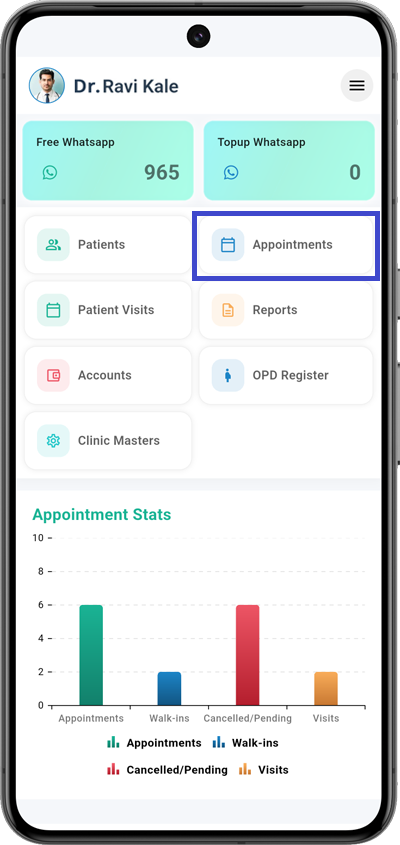
Step 1: Open the Appointments Menu
From the Home Screen, tap the Appointments menu to access appointments and walk-in visits.
Step 2: View Appointment Calendar
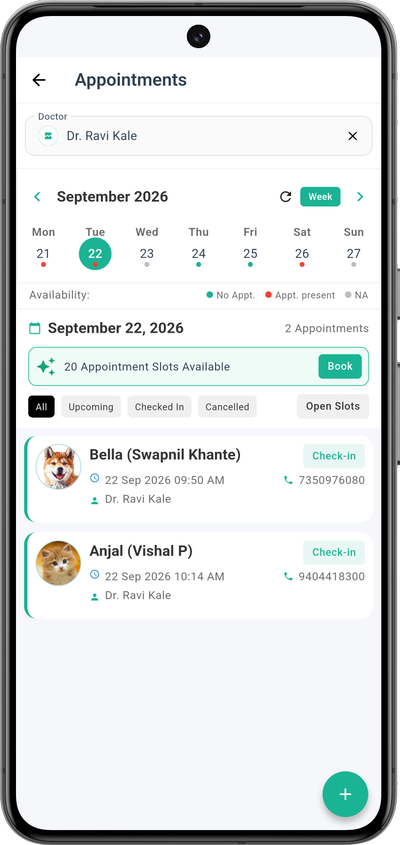
The Appointment Calendar will be displayed with the current date selected. Available calendar options can be used to view appointments / walk-in visits as required.
Step 3: Tap on "+" button
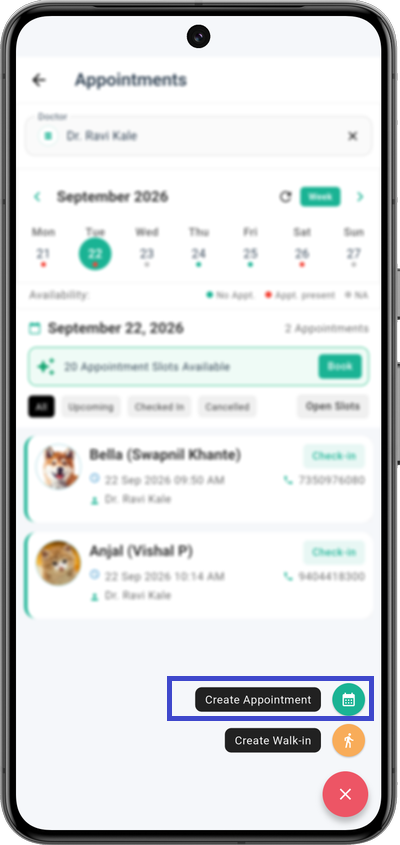
Step 4: View the Book Appointment Form
A blank Book Appointment form will be displayed as per the date selected on the previous form.
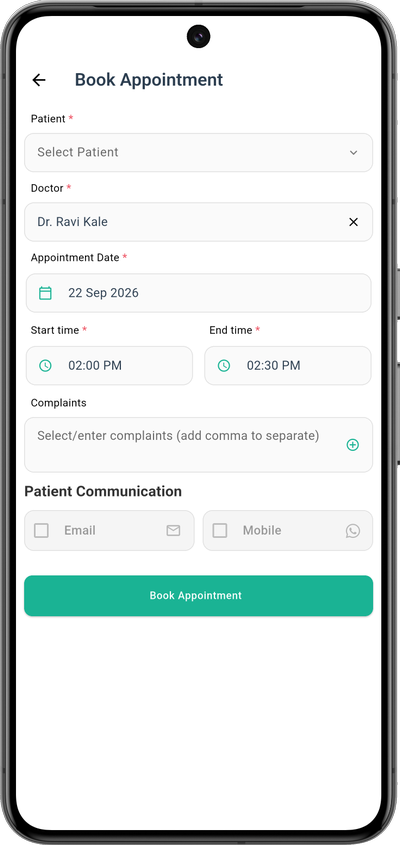
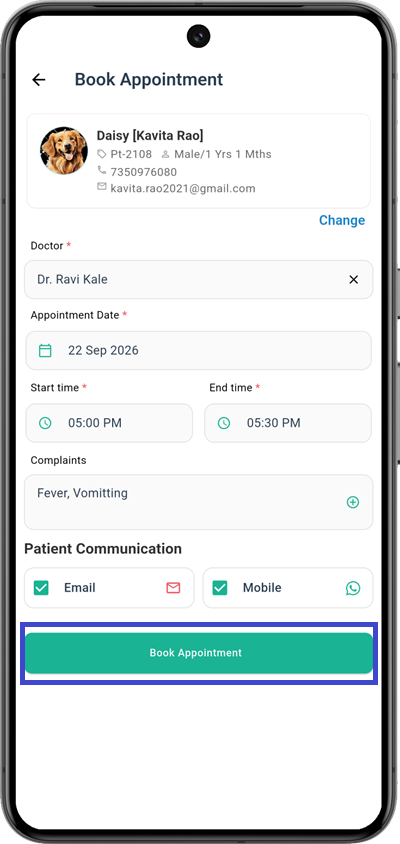
Step 5: Enter Appointment Details and Submit
Enter the required appointment details, including the Patient, Appointment Date, Appointment Time, and Doctor.
If the pet owner has provided a reason for the visit, enter it in the Complaint field.
The Email and WhatsApp options will be enabled or disabled based on the clinic's configured settings.
Once all the required details have been entered, tap Book Appointment at the bottom of the form to confirm the appointment.
Practiva will send the Appointment Confirmation to the patient's email and/or WhatsApp based on the options selected in the checkboxes.