How to create a walk-in for a patient?
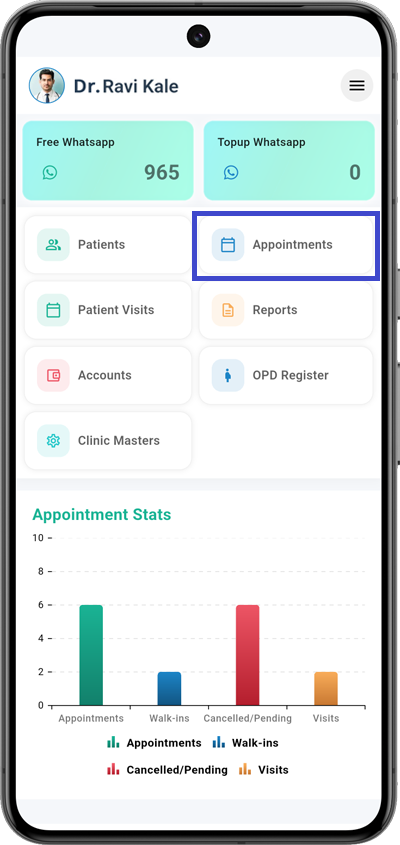
Step 1: Open the Appointments Menu
From the Home Screen, tap the Appointments menu to access appointments and walk-in visits.
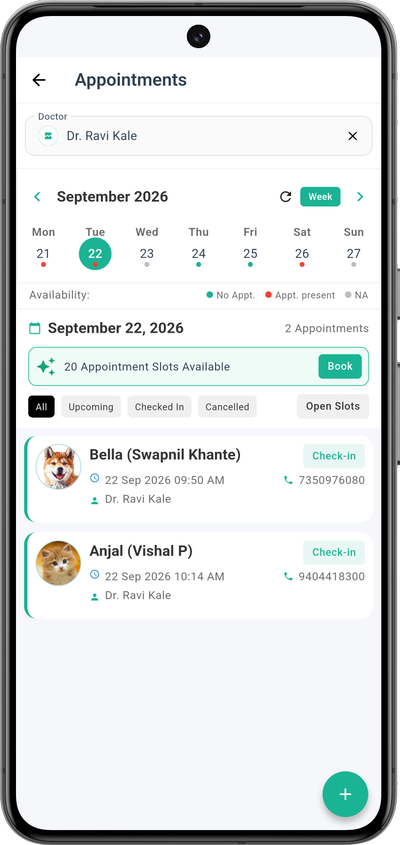
Step 2: View Appointment Calendar
The Appointment Calendar will be displayed with the current date selected. Available calendar options can be used to view appointments / walk-in visits as required.
Step 3: Tap on "+" button
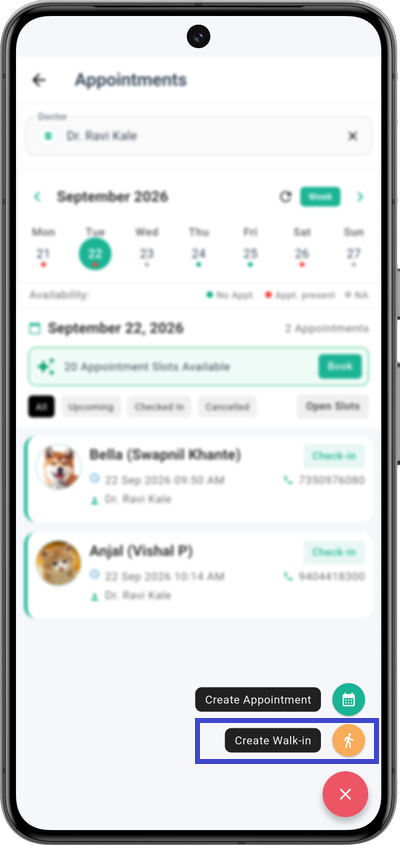
Step 4: View the Create Walk-in Form
A blank Create Walk-in form will be displayed as per the date selected on the previous form.
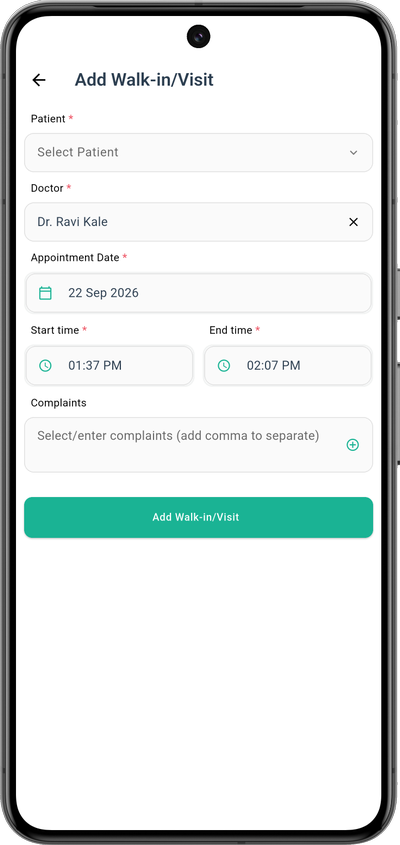
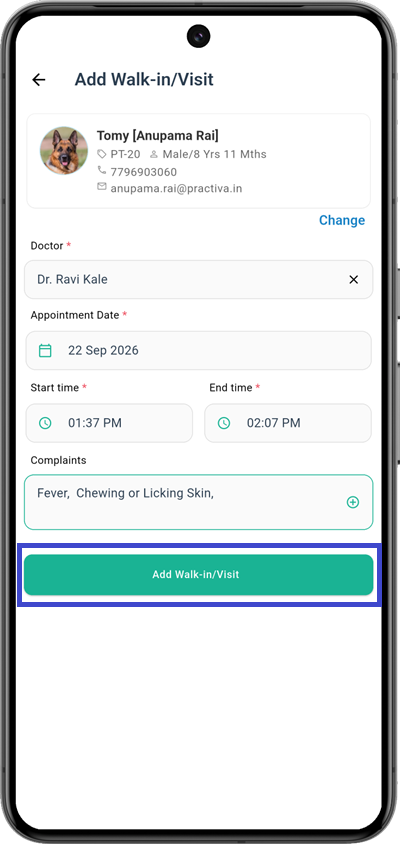
Step 5: Enter Walk-in details and Submit
Enter the required walk-in visit details, including the Patient, Visit Date, Visit Time, and Doctor.
If the pet owner has provided a reason for the visit, enter it in the Complaint field.
Once all the required details have been entered, tap Add Walk-in/Visit button at the bottom of the form to create the visit.