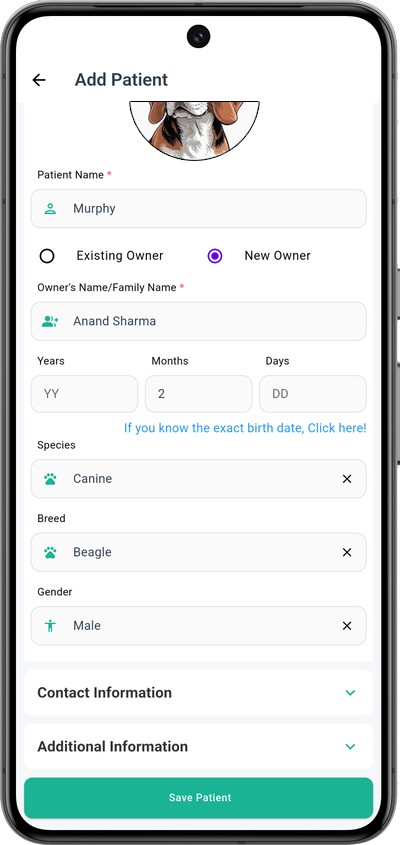
How to add a new patient?
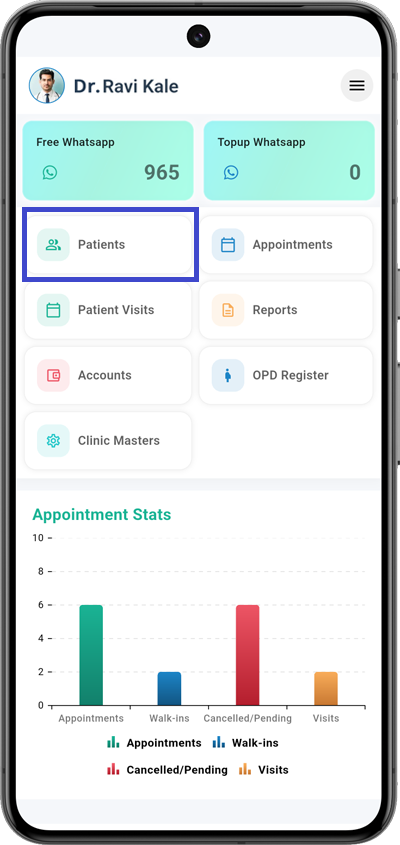
Step 1: Open the Patients Menu
From the Home Screen, tap the Patients menu to access patient management.
Step 2: View the Manage Patients Screen
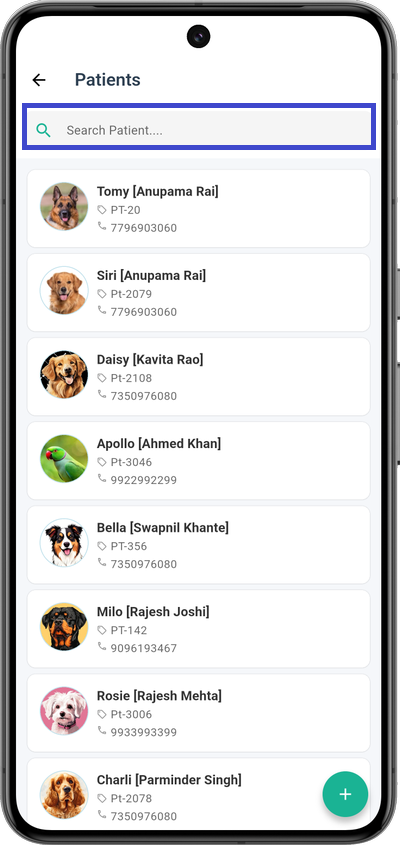
The Manage Patients screen will be displayed. It displays recently accessed patients. It also displays a search bar which can be used to search the patient using patients name, owner's name, mobile, email, patient registration no, species, breed, and microchip number.
Best Practice - Before adding a new patient, always search for the patient in the system to ensure that a duplicate record is not created.
Step 3: Tap the “+” Button
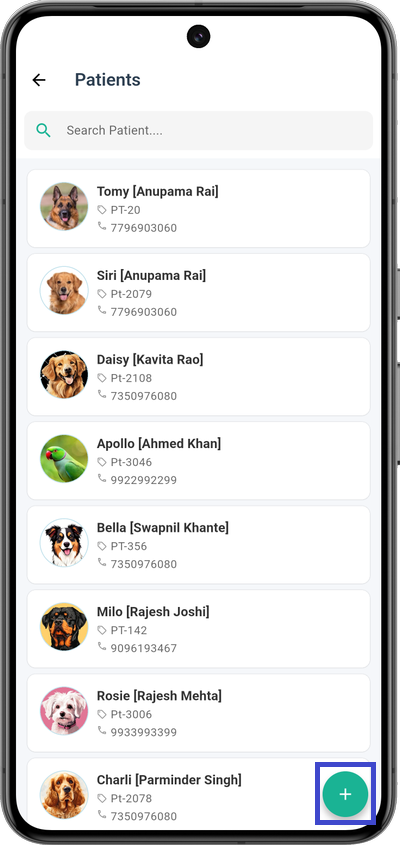
Tap the “+” Floating Action Button (FAB) to open the Add Patient form.
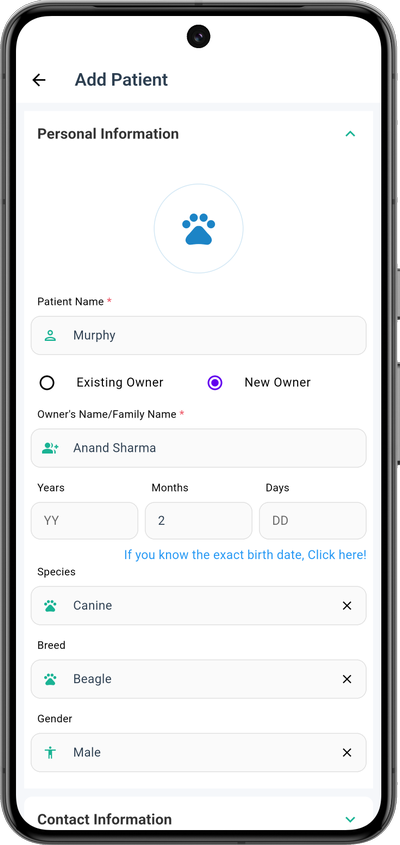
Step 4: Enter Patient Details
Enter the required patient details in the available text fields and selection lists.
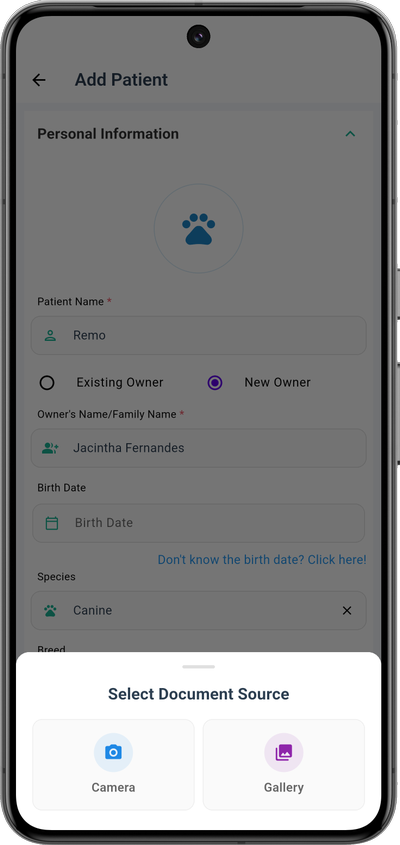
You can also add a patient photo by taking a new photo using the Camera or selecting an existing photo from the Gallery on your mobile device.
Step 5: Save the Patient
After entering the required details, tap Save Patient at the bottom of the form to create the new patient.