How to reset your own password?
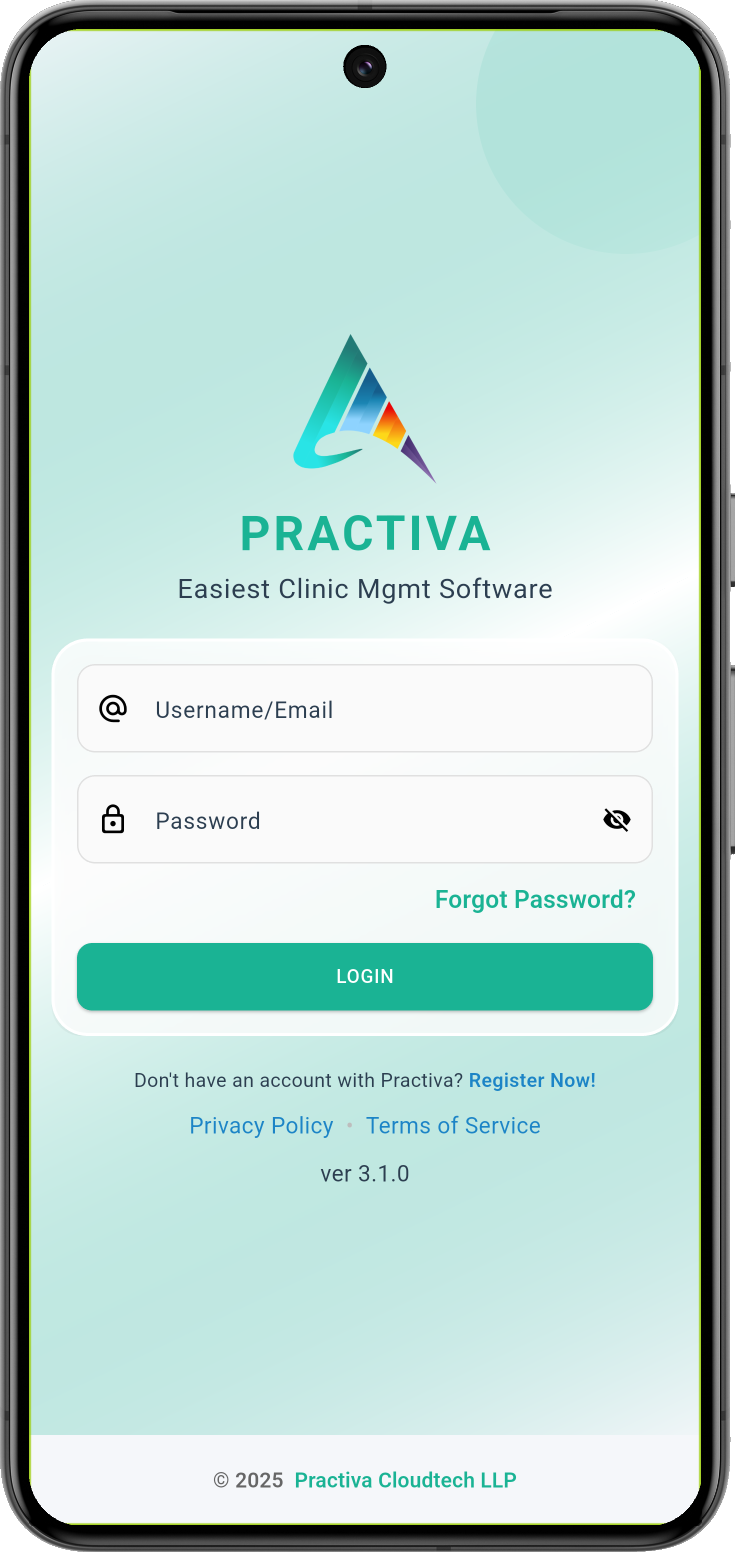
Step 1: Click on “Forgot Password”
If you have forgotten your password or wish to reset it, tap the “Forgot Password” link on the Login screen.
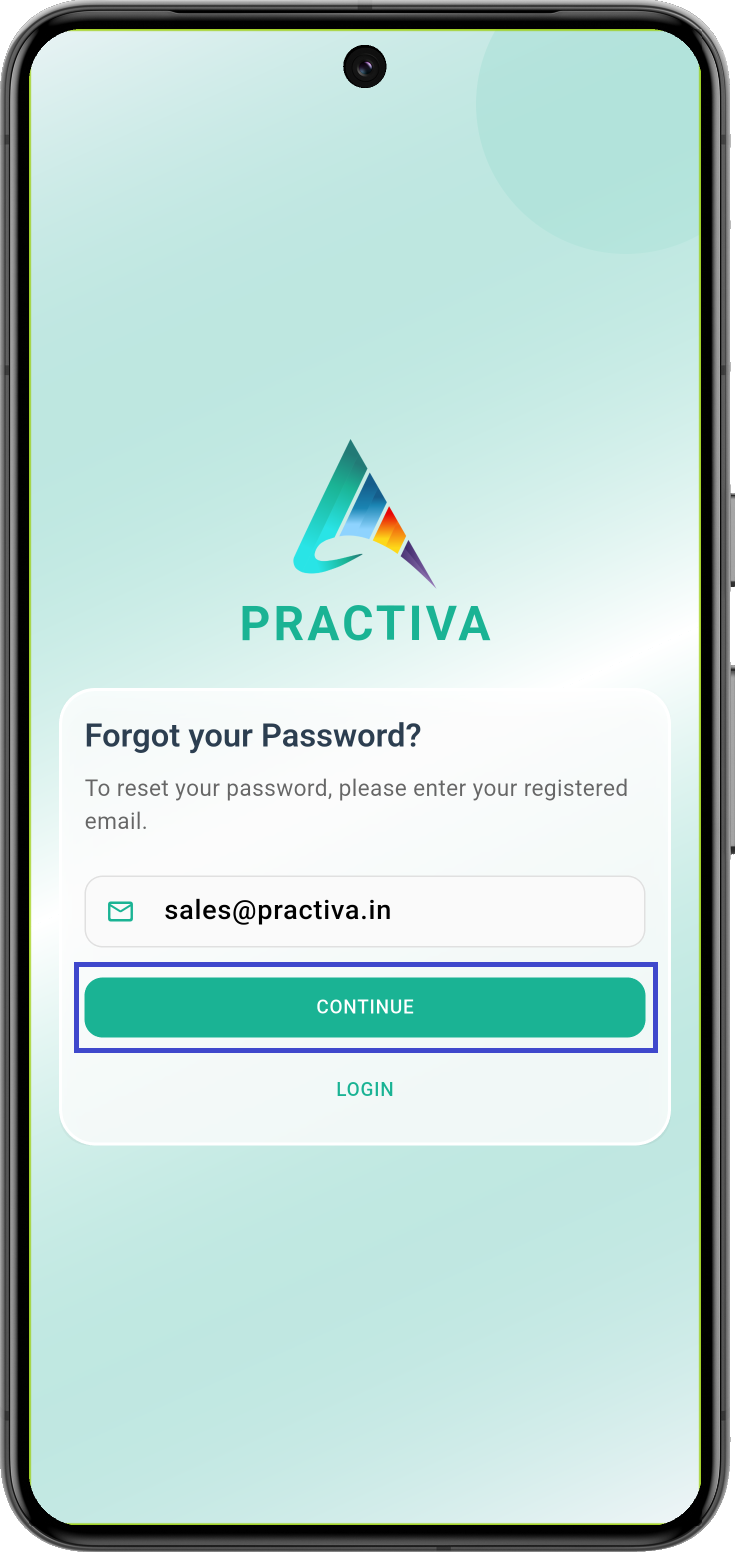
Step 2: Enter Your Registered Email
Enter the registered email address associated with your Practiva account and tap “Continue.”
Once submitted, you will receive an email with instructions to reset your password.
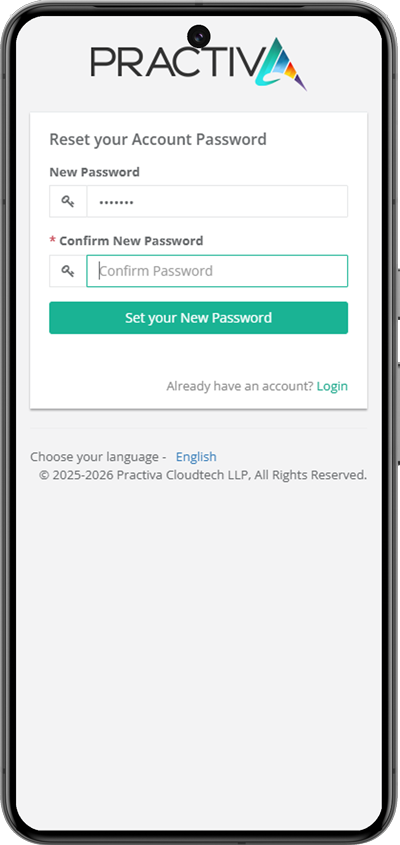
Step 3: Set Your New Password
Open the password reset email and tap the “Reset Password” button.
You will be redirected to a form where you can set your new password. Enter your new password and submit the form.
Your password has now been successfully updated. You will also receive a confirmation notification by email and WhatsApp once the password is changed.