
How do I view all the receipts of a single patient?
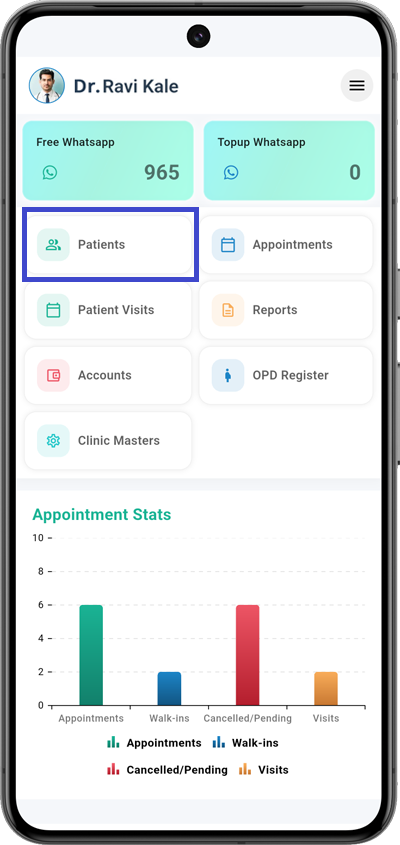
Step 1: Open the Patients Menu
From the Home Screen, tap the Patients menu to access patient management.
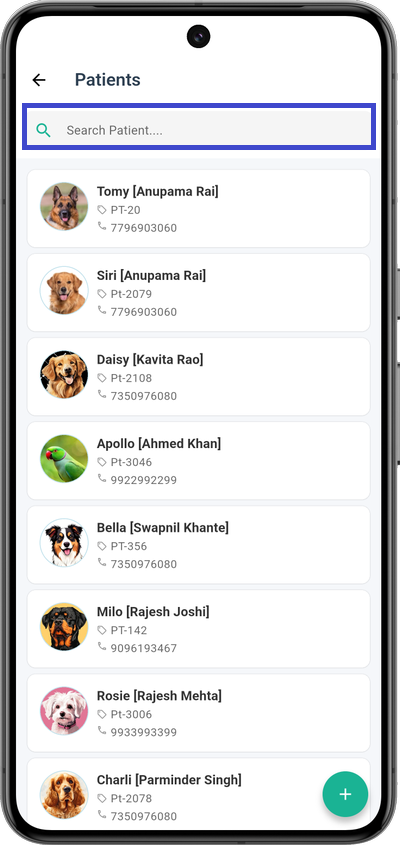
Step 2: Search for the patient on Manage Patients Screen
The Manage Patients screen will be displayed. It displays recently accessed patients. It also displays a search bar which can be used to search the patient using patients name, owner's name, mobile, email, patient registration no, species, breed, and microchip number.
Search for the patient whose receipts you wish to view using any of the above criteria.
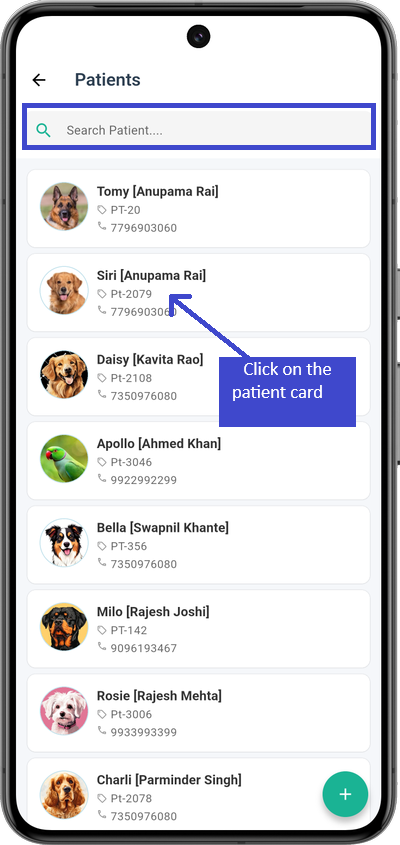
Step 3: Tap the patient record to view patient details
Step 4: View Patient Details
Tap the appropriate patient card to open and view the patient's complete details.
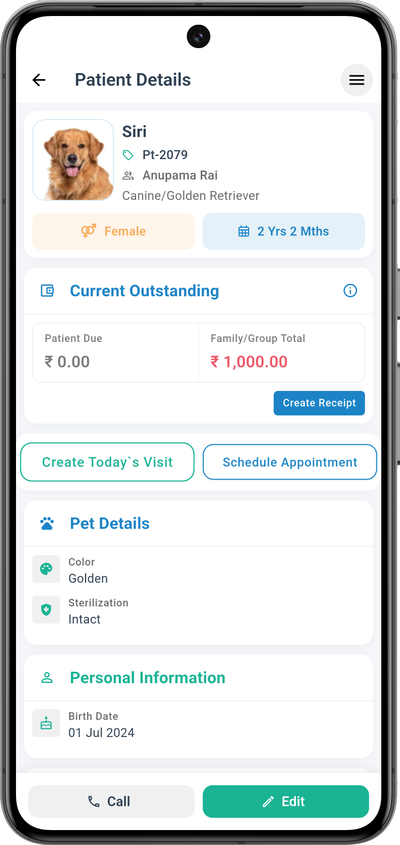
Step 5: Tap on Timeline Option
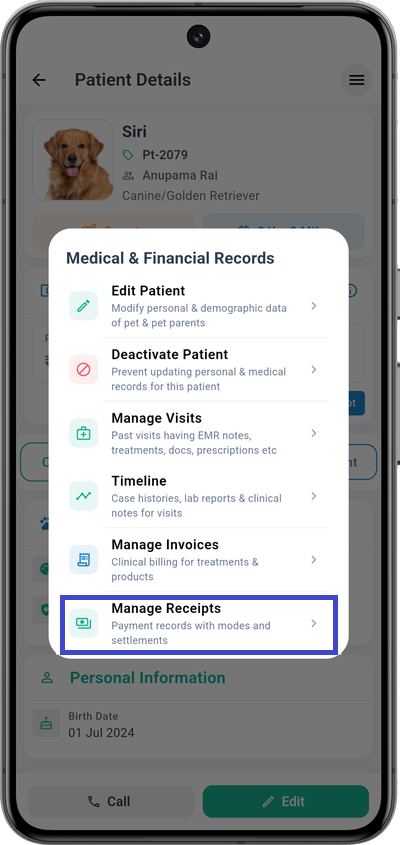
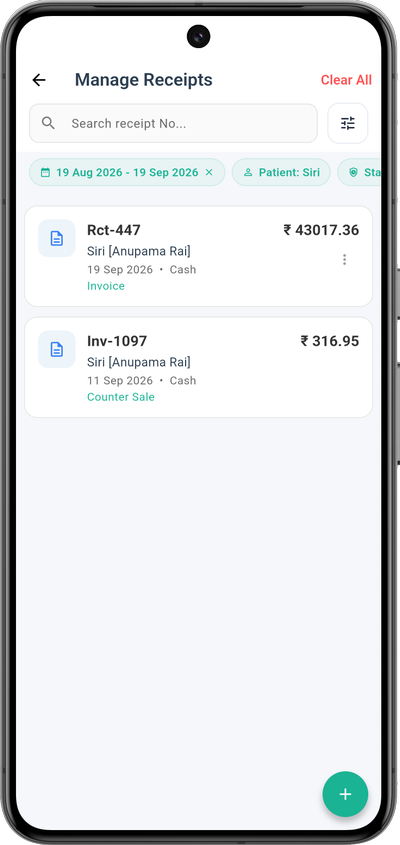
Step 6: View Patient Receipts
The patient's receipts are displayed as individual cards, arranged date-wise for easy reference.
Step 7: Tap the Receipt Card
Tap any Patient Receipt card to view the details of that particular receipt.