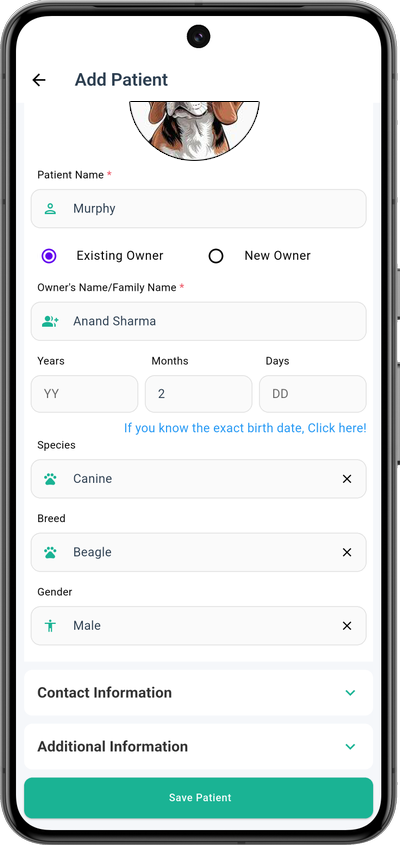
How to add a new patient to an existing owner?
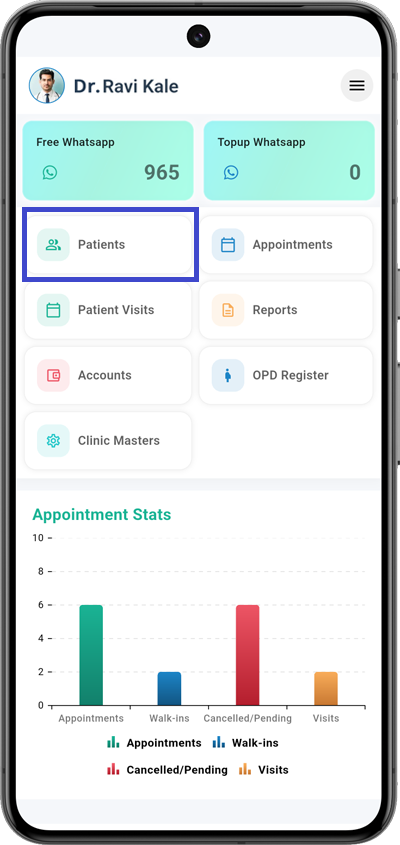
Step 1: Open the Patients Menu
From the Home Screen, tap the Patients menu to access patient management.
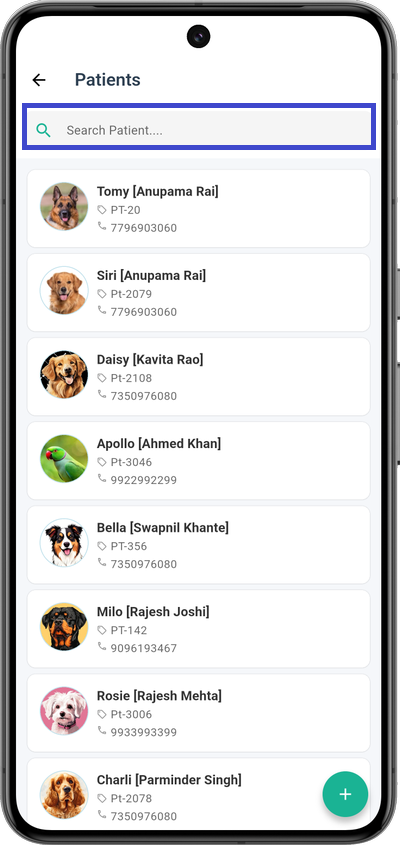
Step 2: View the Manage Patients Screen
The Manage Patients screen will be displayed. It displays recently accessed patients. It also displays a search bar which can be used to search the patient using patients name, owner's name, mobile, email, patient registration no, species, breed, and microchip number.
Best Practice - Before adding a new patient, always search for the patient in the system to ensure that a duplicate record is not created.
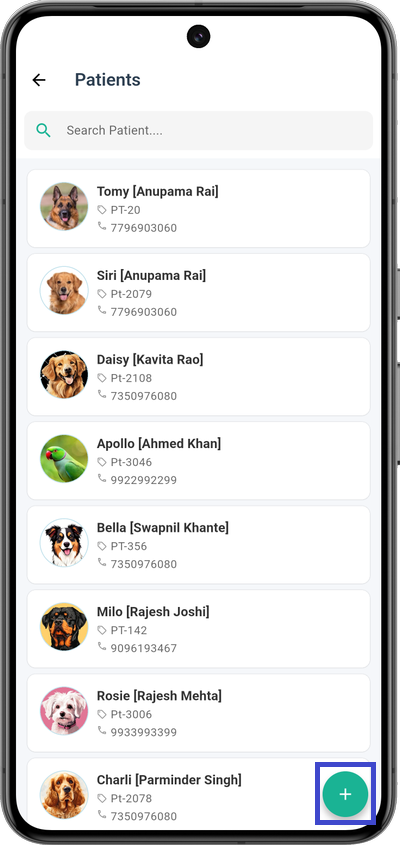
Step 3: Tap the “+” Button
Tap the “+” Floating Action Button (FAB) to open the Add Patient form.
Step 4: Enter Patient Details
Enter the required patient details in the available text fields and selection lists.
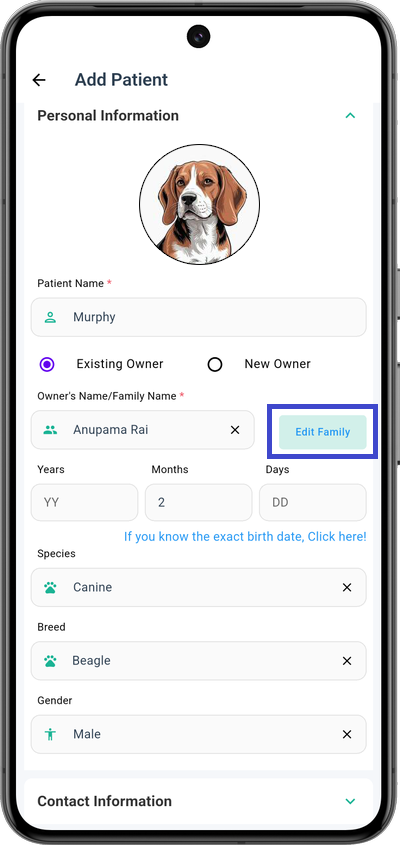
If the pet owner already exists in the system, select Existing Owner instead of creating a new owner. Search for the owner using their Owner Name, Mobile No., or Email, and select the appropriate owner from the search results.
Once you select an existing owner, the system will automatically populate the Owner Name, Mobile No., and Email fields.
You can also add a patient photo by taking a new photo using the Camera or selecting an existing photo from the Gallery on your mobile device.
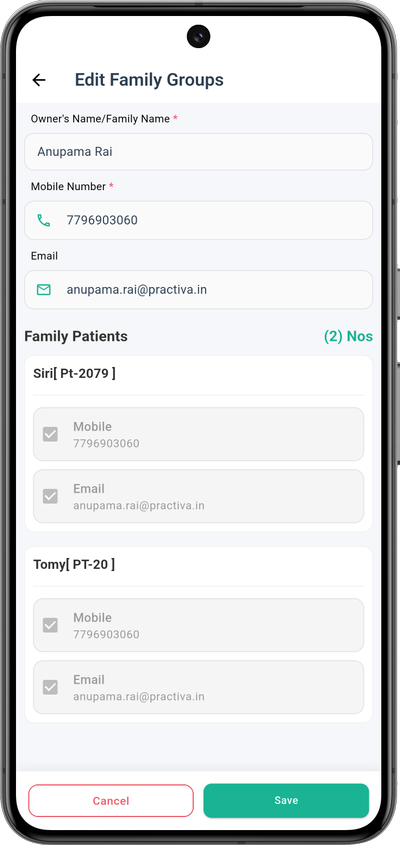
Note: If you wish to edit the existing Pet Owner's Name, Mobile No or email, please click on the Edit Family button as shown. Once your change has been saved, the updated owner name, mobile number, and email will be updated to all the pets in the same family.
Step 5: Save the Patient
After entering the required details, tap Save Patient at the bottom of the form to create the new patient.