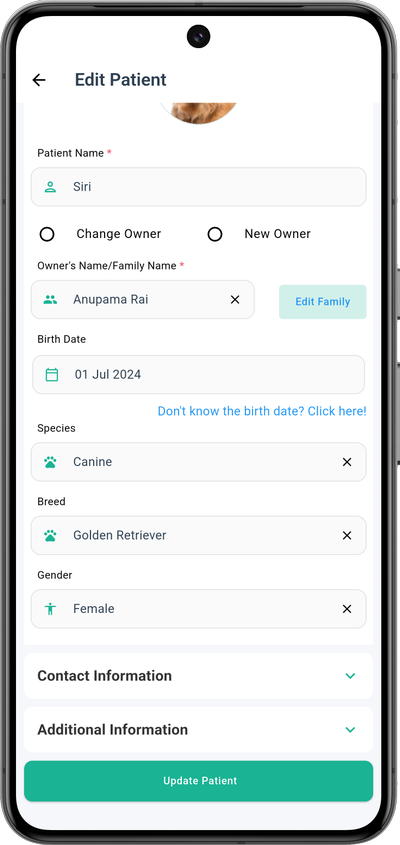
How do I update patient information?
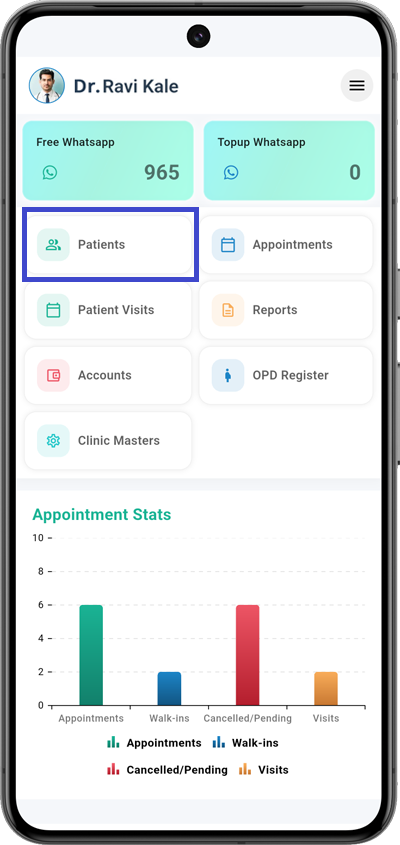
Step 1: Open the Patients Menu
From the Home Screen, tap the Patients menu to access patient management.
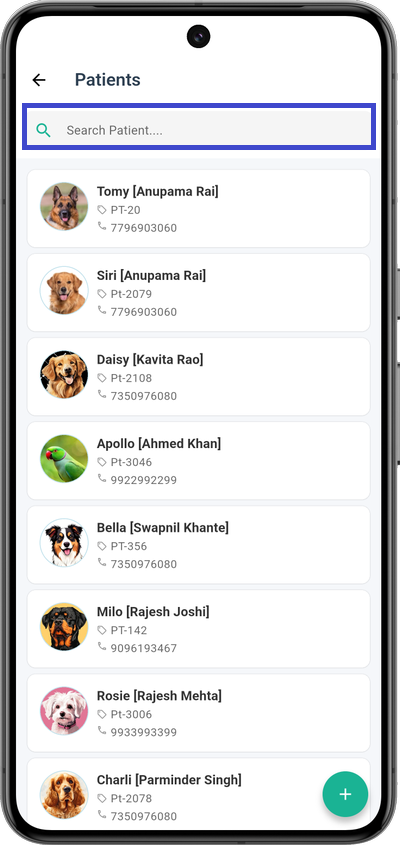
Step 2: Search for the patient on Manage Patients Screen
The Manage Patients screen will be displayed. It displays recently accessed patients. It also displays a search bar which can be used to search the patient using patients name, owner's name, mobile, email, patient registration no, species, breed, and microchip number.
Search for the patient using any of the above criteria which you wish to edit.
Step 3: Tap the patient record to edit
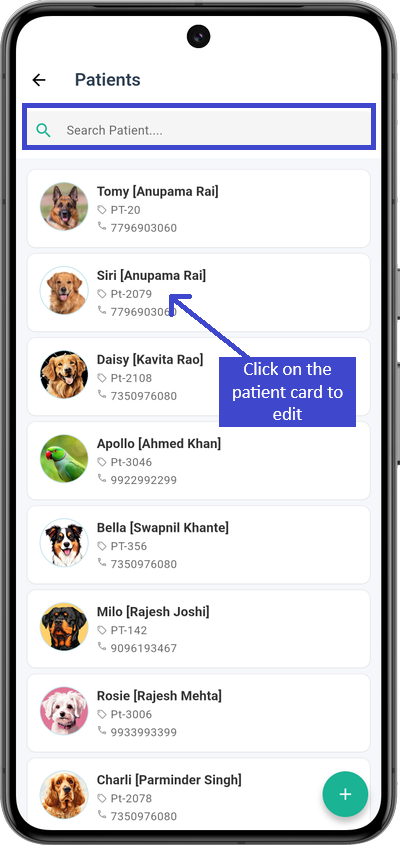
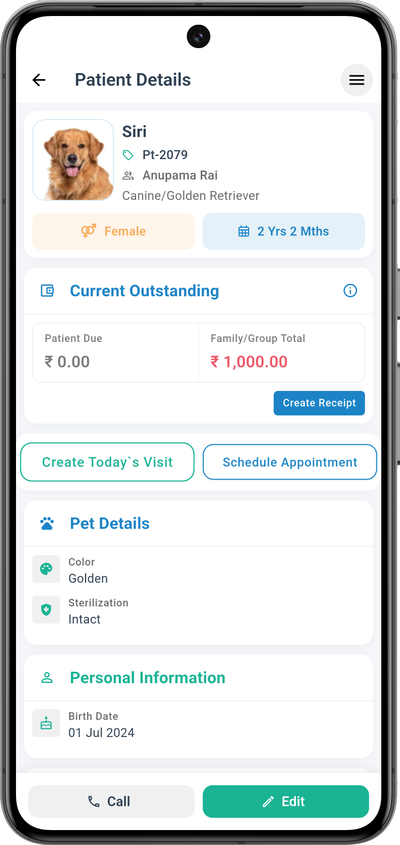
Step 4: View Patient Details
Tap the appropriate patient card to open and view the patient's complete details.
Step 5: Open the Edit Patient Form
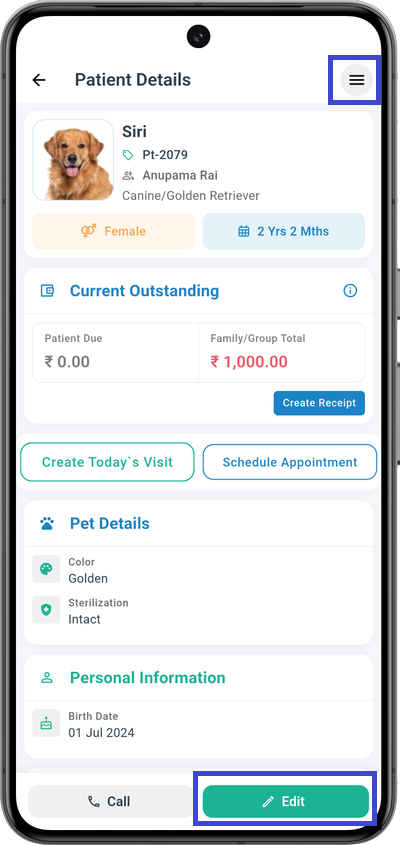
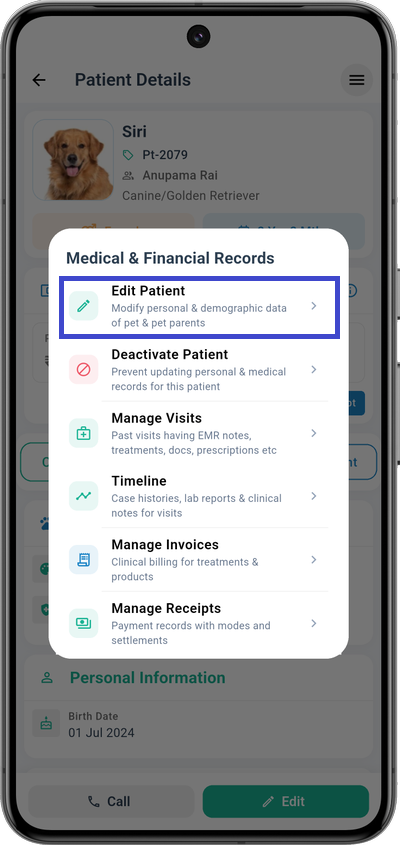
You can open the Edit Patient form in either of the following ways:
Step 6: Edit Patient Details
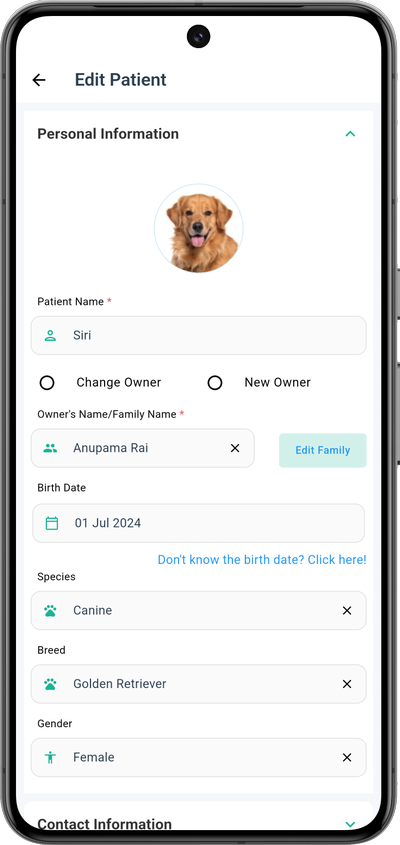
The existing patient information will be automatically populated in the relevant fields. Update the information as required.
Step 7: Update Patient Details
After making the required changes, tap the Update Patient button at the bottom of the form to save the updated information.