How do I manage my clinic invoices?
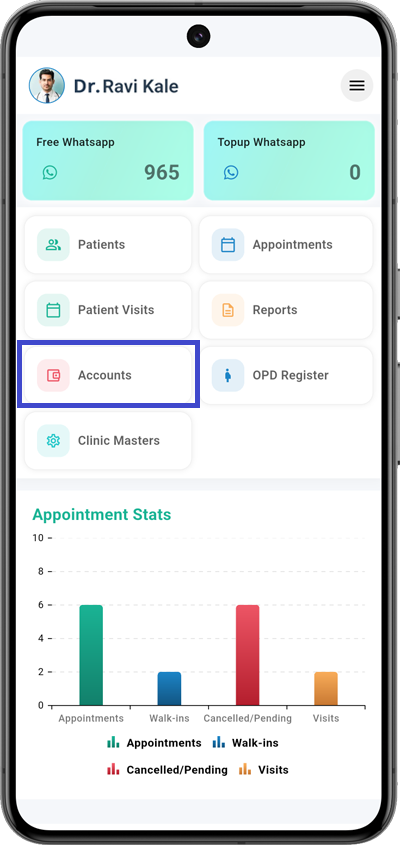
Step 1: Open the Accounts Menu
From the Home Screen, tap the Accounts menu to access your clinic's Invoices and Receipts.
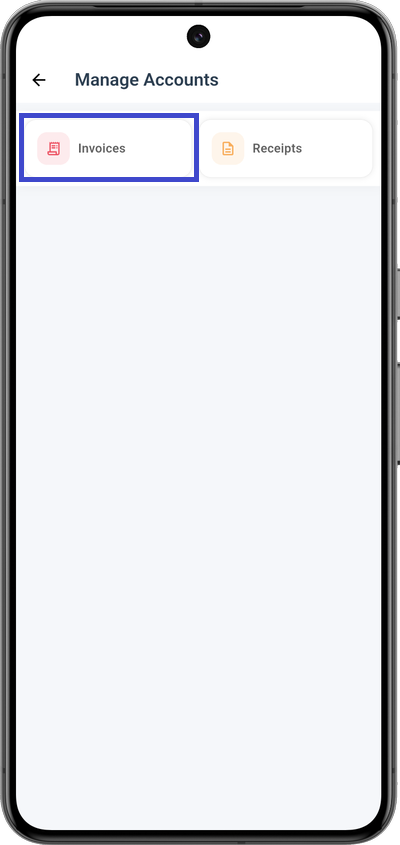
Step 2: View Invoices and Receipts
The Invoices and Receipts submenus will be displayed.
- Tap Invoices to manage all your clinic's invoices.
- Tap Receipts to manage all your clinic's receipts.
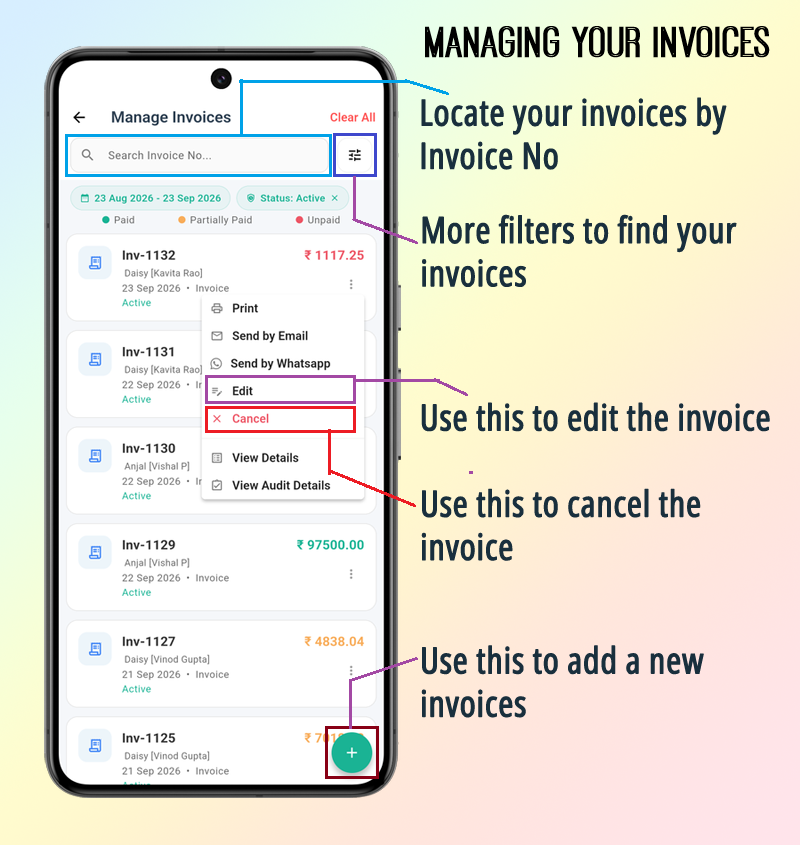
Step 3: View and Manage Clinic Invoices
The Invoices screen displays a list of all invoices issued by the clinic, including regular invoices and Counter Sales invoices.
From this screen, you can:
- Use the Search bar to find an invoice by Invoice No.
- Apply additional filters to find specific invoices.
- Tap an invoice to view its details.
- Perform various actions such as Edit, Cancel, View Invoice, Send Invoice via WhatsApp, Send Invoice via Email, and View Audit Trail.
- Use the colour-coded invoice totals to quickly identify invoices that are fully paid, partially paid, or unpaid.
- Tap the “+” FAB at the bottom-right to create a new invoice.
Step 4: Tap an Invoice
Tap any Invoice to view a short summary of that particular invoice, as shown below.
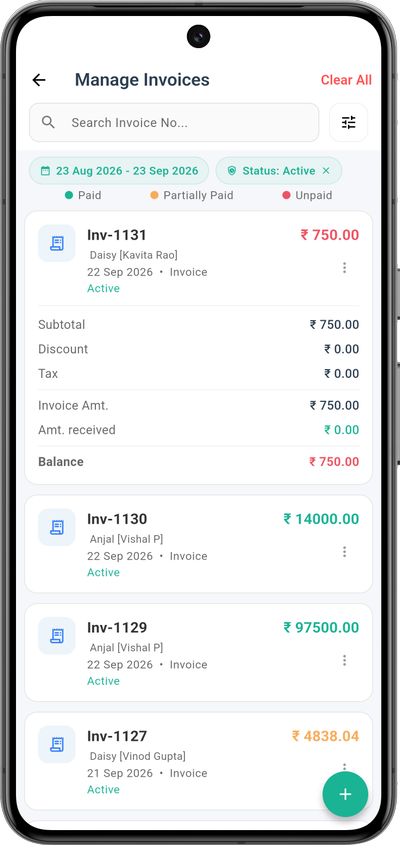
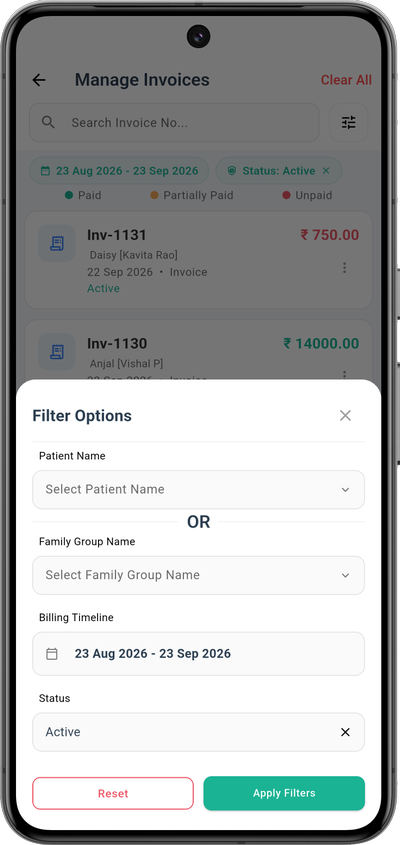
Step 5: Use Filters to Search Invoices
Tap the Filter icon to open additional search options. You can filter invoices based on criteria such as Patient Name, Family/Group Name, From & To Date, Invoice Status, and more.
After selecting the required criteria, tap Apply Filters to view the filtered list of invoices.