How do I view a patient's case paper / patient timeline?
Step 1: Open the Patients Menu
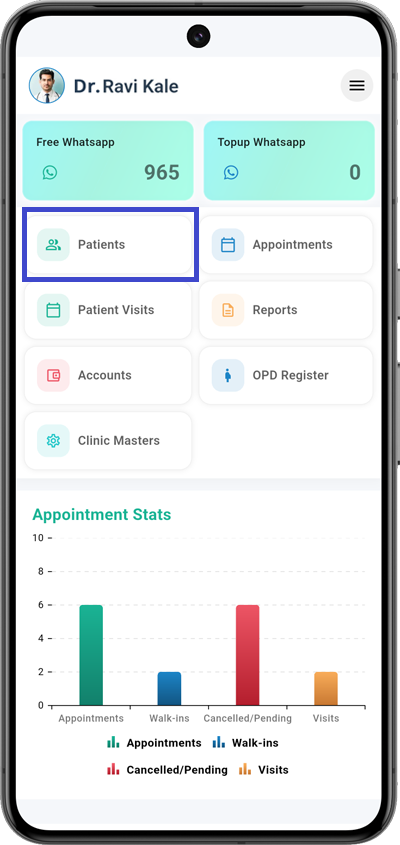
From the Home Screen, tap the Patients menu to access patient management.
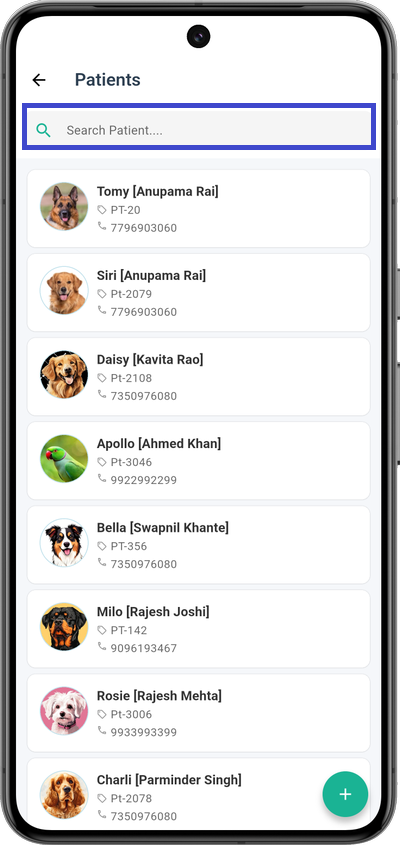
Step 2: Search for the patient on Manage Patients Screen
The Manage Patients screen will be displayed. It displays recently accessed patients. It also displays a search bar which can be used to search the patient using patients name, owner's name, mobile, email, patient registration no, species, breed, and microchip number.
Search for the patient whose timeline you wish to view using any of the above criteria.
Step 3: Tap the patient record to view patient details
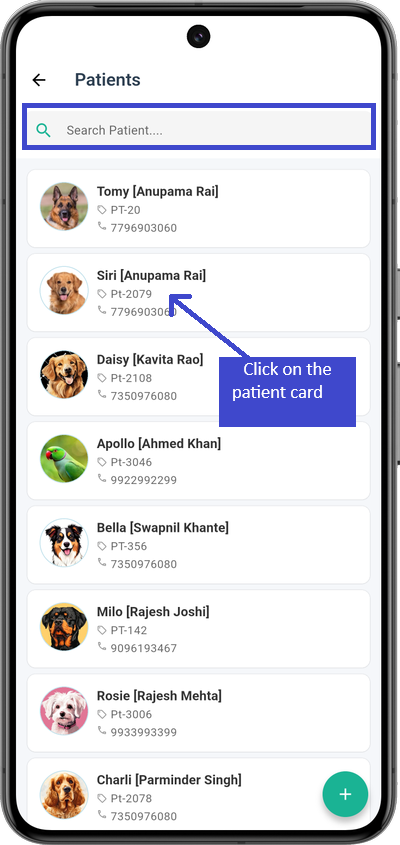
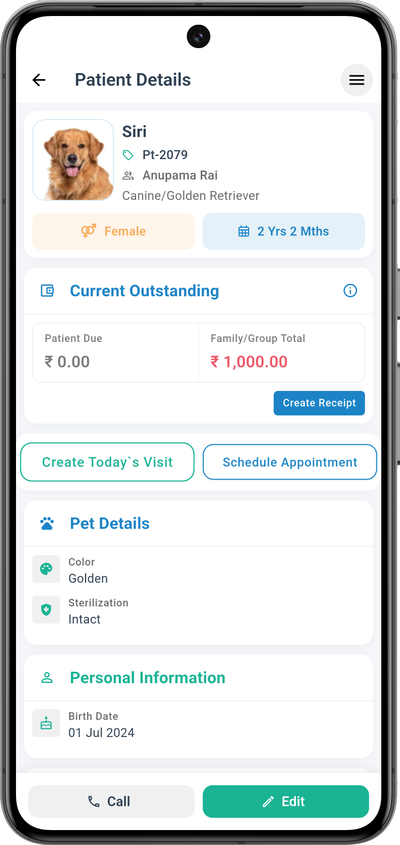
Step 4: View Patient Details
Tap the appropriate patient card to open and view the patient's complete details.
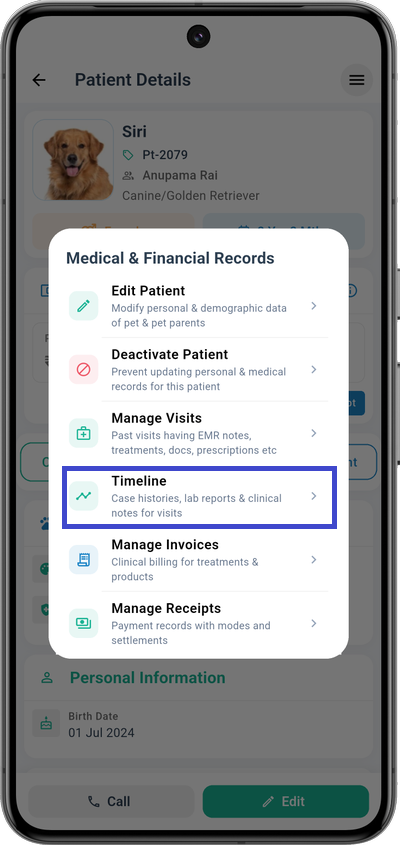
Step 5: Tap on Timeline Option
Step 6: View Patient Timeline
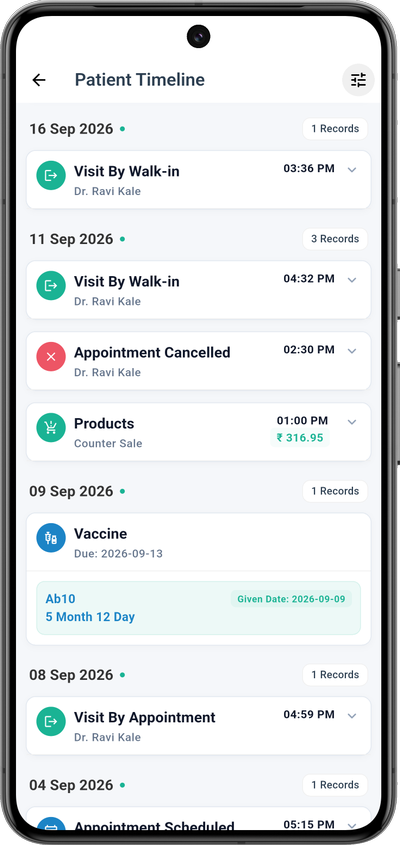
Default Patient Timeline since the patient last visit is displayed. The time line may contain multiple expandable cards.
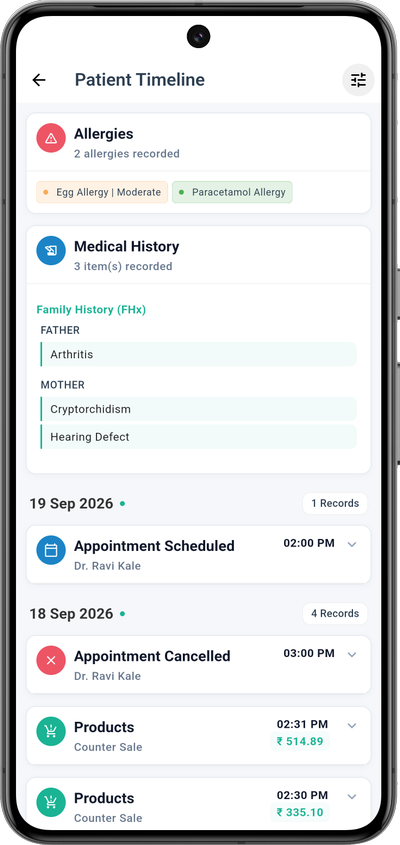
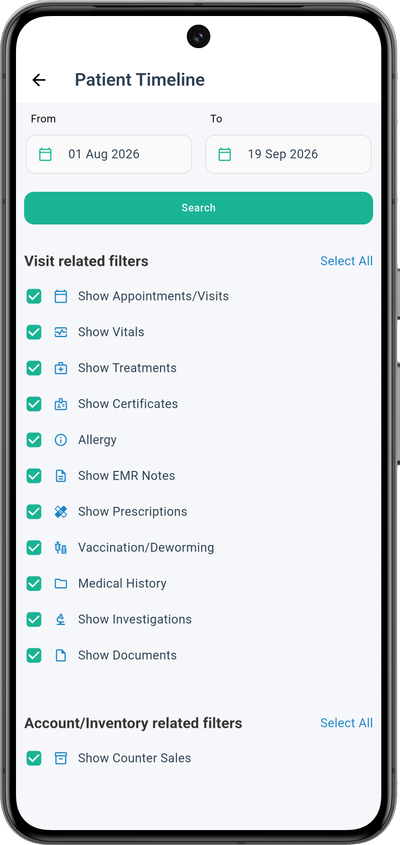
Step 7: Using Filters
You can click on the filter icon on the top right to open the applicable filters. Choose the filters of your choice and tap on Search button to filter the result again
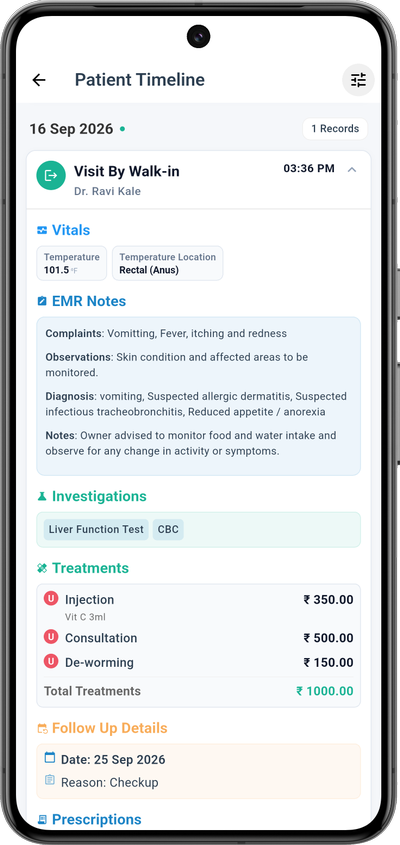
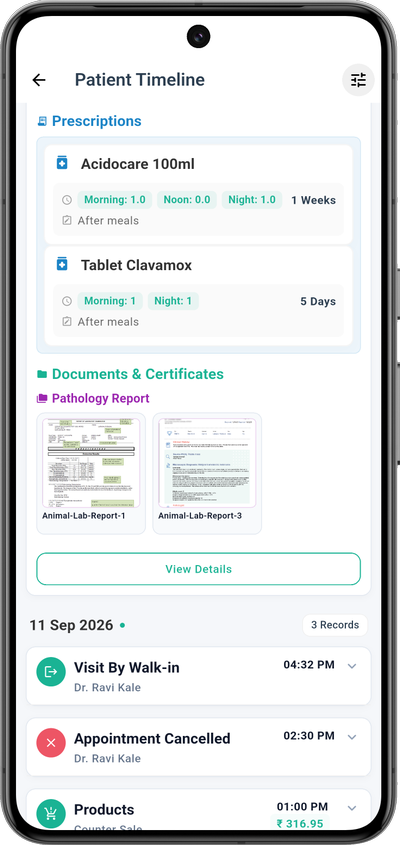
Step 8: Expand a Card to View More Details
The Patient Timeline may contain multiple expandable cards. Tap a card to expand it and view the details within.